I am creating graph and conditional formatting from simple sales data. Instead of doing all manually, I will check the Copilot integrated into Excel first.
When working with Copilot, activate the autosave. I saved the file in OneDrive.
This picture was taken in the top left corner.
I created simple sales data.
The copilot is in the top right corner in data.
Additionally, Copilot icon can be found in the home ribbon.
I activated the data range and selected the Copilot and “Ask Copilot”.
Copilot menu appeared on the right. I pressed apply color and formatting.
I wrote in the chat box “Highlight cells with highest values.”.
I pressed apply.
The result, the highest value is coloured.
I wrote “show data insights”.
I pressed add to a new sheet.
Here is the graph.
This graph visualizes the sales volumes between different products. P5 and P2 have clearly the highest volumes.
I wrote “create a pie chart” in Copilot chat box.
The results. I added to a new sheet.
This is what Copilot created. The graph can still be modified like header can be changed to a more descriptive and the legend could be printed with bigger font.
Double click the header and re-write the header.
Select the right mouse button on top of the legend and select font.
There are many ways you can test Copilot. I just took some examples when creating a graph and conditional formatting. If results from Copilot are not fully completed, you can always start the work with Copilot and finetune the task manually. That might save time.
Let’s think you have physical storage. When you purchase goods into your warehouse, you have fixed ordering costs per order. The more you order, the lower the ordering costs gets per piece. On the other hand, you have carrying costs for running a warehouse, the more goods you have in the warehouse, the more it costs.
One way to calculate the economic order quantity is simply to count ordering costs per piece plus carrying costs per piece. Then we check the lowest point of total costs per piece.
Column B is a running number of pieces in stock. C2 is ordering costs, 300. That is divided per piece in stock. It costs 4 units to have one piece in stock. That is multiplied by stock piece in D-column. In E-column I have divided the total costs per piece.
Economic order quantity is the lowest point of total costs per piece. We can define that visually to be 9 pieces.
How can we automate the defining the lowest value ?
One way is to create a graph. Activate the range B3:E20 and select insert – line or area chart.
I selected the first 2-D line chart.
The default graph is quite good. We could still change the title and Y axis scale.
Activate the Y-axis, press right mouse button on top of Y axis and select format axis.
The maximum was changed from 350 to 200.
The graph is now more human readable as the Y axis ends with 200. The total cost is at lowest point, when ordering costs and carrying costs intersect. The point is nine.
MIN is very simple and common function, here it is very useful to find the lowest value in E-column. We can find the lowest value, 69,33, visually. If the data set were larger, it would get more difficult to see which value is the lowest one.
One way to define economic order quantity per piece is MATCH function. The function consists of three arguments: lookup value, lookup array and match type. In this case, lookup value is E2, the minimum value in E-column. The lookup array is the data range E4:E20 where we have total costs per piece. The match type is 0, we are looking for exact match for E2 in E-column. The function returns the value from B-column. That happened pretty easily. The economic order quantity in our case is nine. Then the warehouse costs are at the lowest point.
When MATCH-function is functioning, you can change some input values, and check if economic order quantity changes.
If ordering cost is 340 and carrying cost 3, then economic order quantity is 11.
I have seen INDEX-MATCH nested functions to have been used for cases like this. What we did is like negative vlookup. When vlookup checks the value in left column and then picks up the value in right column, we did opposite. We were looking for value in E-column, 69,33. When we found that, we check what is the value in the most left column, B-column. The value there is 9.
Correlation means how strongly two statistical variables are dependent on each other. Graphically, we can see the dependence in XY scatter graph. On Y axis we have the dependent variable (variable to be explained) on X the independent variable (explaining variable).
If the correlation is between 0,8 and 1 or -0,8 and -1, then the correlation is obvious.
We have simple data independent and dependent variables.
First, we calculate the averages.
Then we need to calculate the difference between the observation and average.
After that, we multiply the differences.
The next step is to calculate the squares for differences.
Then, we need to calculate the sums for differences in columns F, G and H.
Finally, we calculate the correlation by having multiplication of x and y differences, divided by square root of x and y difference multiplications.
The correlation in our case is roughly 0,959 which is a high value and there is a statistical dependence between independent and dependent variables.
To make it easier, you can just use either CORREL or PEARSON functions. Those functions return the same value as we calculated manually.
One quick way to calculate the correlation is to use data analysis. I have data analysis under data menu, last one in the right.
Select correlation.
Enter the input and output ranges.
The result is still the same.
Do you still want to have a scatter graph ?
The result is still the same.
Do you still want to have a scatter graph ?
Activate the data and select home – analyze data.
Scroll down to find the scatter graph.
Select the dots in the graph and press right mouse button. Select add trendline.
When you scroll downwards the format trendline, you can select display R-squared value on chart.
Now we have a trend line. We see that the dots are pretty close to the trend line.
R square is a square for the correlation.
R square indicates how many percents of changes in independent variable explains the changes in dependent variable. In our case that is 92 %.
This means one sales rep sold 0-5 pieces, two sales reps sold 6-10 pieces and so on.
First, we calculate the cumulative number of sales reps.
Then we calculate the percentual accumulation.
Three sales reps, roughly 11 % of all the sales reps sold 0-10 pieces, for example.
We should create an accumulative curve to see how many sales reps are selling tops 5, 10 or 15 pieces.
Note, that I have emptied B2, the header for X-axis values.
I activated the ranges B2:B7;E2:E7.
Select the correct graph.
I am using the two-dimensional line.
I got right away pretty good graph which does not require much modifications.
The Y-axis is till 120 %.
Activate the Y-axis, so that axis values are in a frame.
Select format axis.
Set maximum to 1,0.
Now the Y axis is up to 100 %.
We can see from the graph that only few percent of sales reps sold tops 5 pieces. Around 10 % of all the sales reps sold up to 10 pieces and roughly one third sold tops 15 pieces. Only about 10 % sold more than 20 pieces.
You have a sales report. We need to make a distribution graph, a histogram, like how many values are equal or less than five, how many values are higher than five but less or equal to ten and so forth.
Our sample data is very simple, that we could see the correct results immediately.
The sentence in E3 is =COUNTIFS($B$2:$B$11;”>”&D2;$B$2:$B$11;”<=”&D3) .
The COUNTIFS is used here with two criterias. The formula is counting how many values in the data range are higher than D2 and lower or equal to D3. Bit tricky part is define the cell reference “>”&D2.
Another option is to use FREQUENCY function.
Enter the data array B2:B11 and bin arrays D3:D6. Then write the formula in E3 and hit enter.
You will get the frequencies per bin.
The third option is to use analysis toolpak. You need to download analysis toolpak via Excel options.
Press go.
Choose analysis toolpak and press ok.
After that, I have a data analysis button far right under data view.
Write again data array and bin arrays.
Press data analysis under data view.
Select histogram and press ok.
Enter input range, bin range and output options. Activate also the chart output. Press ok.
The result.
The COUNTIFS is more complex than FREQUENCY or data analysis. Data analysis is practical once it is loaded. Excel is offering various ways to calculate and present histogram.
You have a time series graph with first actual figures and then planned figures. The actual and plan needs to be graphically separated, that the audience would immediately see which figures are actuals and which are planned ones.
In the graph there is just one line, first part represents the actual figures and the end of he line, planned figures.
Actual figures and planned figures are in different columns, therefore they can have different headers.
I have value in D18, that is the last actual number, but the graph looks better when we have both values in last actual row.
Activate the range B2:C21 and take insert – charts.
Select one chart template.
Actual figures are in graph.
Select B2:B21;D2:D21, take copy like control + C.
Click right mouse button on top of the graph and select paste special.
These selections are ok.
The result.
Maybe a bright red would be a more striking colour for the planned figures.
Click the planned figures and take color under format data series.
If you want to change chart type from the line, take right mouse button and change chart type.
Select combo from left side. Chart type can be defined per series. If you want to have actuals bars and planned figures as line.
It is possible to have two different chart types like bar and line. However, I prefer the same chart type for actual and planned figures.
Click the chart and press plus button, then select chart title. You can edit the title.
Now we have header for the graph.
The legeds blue actual and red planned would clarify the graph.
Click the graph and press plus in the top right hand corner.
Select legend.
Now the graph looks like what I was planning to have. Actual values are in blue line and planned values are in red line. Legend is clarifying which one is which.
Excel is a tool for presenting not only calculations.
You have in Excel cells with different colours. Now the colours are not cosmetics but colours play part when we are counting sums and counts.
First, we need to count how many cells are coloured with certain colours. Like how many cells are having yellow colour ? That is still easy to count visually.
How many different colour can you see ? The issue is that there are several shades of green. What is the frequency of each colour ?
The solution is interior.colorindex property. That is a number which is unique for each colour. We need to have a macro which is checking the colorindex and printing the number to the next cell. Then we can count how many times each number is appearing in the data range.
In Visual Basic editor we have the immediate window. There we can query cells properties like interior.colorindex. We have the cursor in a yellow cell. The colorindex for yellow colour is six.
A macro may check each cell and print the colorindex value.
Sub z_colors()
Dim zc
Do Until ActiveCell.Interior.colorindex = -4142
zc = ActiveCell.Interior.colorindex
ActiveCell.Offset(0, 1).Select
ActiveCell.Value = zc
ActiveCell.Offset(1, -1).Select
Loop
End Sub
Macro to define colorindex for each cell is relatively simple. The cell without any interior colour has colorindex -4142. The macro is going downwards and storing the colorindex as zc variable. Then macro takes one step right and pastes the number at the right hand side of the cell. The macro takes the next cell in the range. When macro finds the cell with interior colorinxed -4142, then the macro stops there.
The cursor was placed in B3 and the macro was executed. As you see, most of the green cells have 43 as colorindex but one has 50.
Note also that the numbers are not dynamic. If you change the interior colour, you need to execute the macro again.
Copy paste the number and take data – data tools – remove duplicates.
Press ok.
Four unique values remain.
With COUNTIF we can calculate how many times each number exits in the number range.
Still, it might be difficult to map colorindex number and colour.
Sub z_colors2()
Dim zi
Do Until ActiveCell.Value = “”
zi = ActiveCell.Value
ActiveCell.Offset(0, -1).Select
ActiveCell.Interior.colorindex = zi
ActiveCell.Offset(1, 1).Select
Loop
End Sub
This macro fills the cell left from the colorindex number with colour related to colorindex.
Place the cursor in the cell G3 and execute the macro. The macro will colour the cells in the column F.
The data range includes ten cells with yellow interior, two reds, five greens and one turquoise.
How about if coloured cells include values.
We need to count sum based on the interior colours, like what is the sum of the values in red cells.
We can use the same colorindex number, but now we use SUMIF function.
You have scatter diagram, where you have nine dots. Each dot has value on X and Y-axis.
To draw a graph, activate the data range B2:C11, select under insert menu a scatter graph.
Now you have graph with dots.
It would be easier to identify each dot with a letter.
Write the dot identifiers in A column.
Activate the dots in the graph and click right mouse button. Then select add data labels.
Press select range and activate name range from A3 onwards.
If you inserted an extra dot in graph, which ones of the existing dots would be the closest to the extra dot ?
The value is defined by counting obs x value minus dot’s x value. That value is squared. Then obs y value and dot’s y value. That also is squared. Then we sum two values and take root square. This is repeated for all the dots.
The sentence in D3 is =SQRT(($B$12-B3)^2+($C$12-C3)^2). That is copied down till D11.
When we have values, we should rank the number. Let’s take top three dots. This we can do with RANK.EQ function.
Here is a simple example about RANK.EQ formula. Just enter the value and range. The highest number has first rank.
If we want to take just three biggest numbers, we add an IF sentence.
The formula in C3 is =IF(RANK.EQ(B3;$B$3:$B$7)>3;””;(RANK.EQ(B3;$B$3:$B$7))). Note that this is counting highest as the first value.
If the lowest number is the first, then you need to add one more argument with value one.
Then we need IF-sentence to take three lowest numbers.
The sentence in C3 is =IF(RANK.EQ(B3;$B$3:$B$7;1)>3;””;(RANK.EQ(B3;$B$3:$B$7;1))).
When we implement this logic to our original Excel, it looks like this:
The sentence in E3 is =IF(RANK.EQ(D3;$D$3:$D$12;1)>3;””;RANK.EQ(D3;$D$3:$D$12;1)).
That is copied down to E12.
As you can see from the graph, the closest points for the OBS are G, H and F.
One application of this functionality is if we want to define attributes for OBS, then attributes of G, H and F are also the closest attributes to OBS.
In this blog, I demonstrate four ways to calculate moving averages in Excel: with AVERAGE function, using data analysis, with OFFSET function, and adding moving average as trendline in a graph.
You can count manually the moving average. In the cell B6 we count average A2:A6. In the following the cell B7 the average is counted from A3:A7 and so on.
Another way is to install analysis toolpak in Excel option.
Then select data – data analysis – moving average.
Toolpak include different kinds of tools, but we are concentrating only on moving average.
Input range is the data range. Interval is five, we are taking average for five values. Output range is in B-column next to the values.
Press ok.
Excel created the averages automatically. As interval is five, first four values cannot have averages.
The moving average can also be done with OFFSET function.
In B6, we have an OFFSET function which has the reference in A2, then we do not move anywhere from A2 but just take five steps downwards. Then we activated area A2:A6. The nested function is taking AVERAGE from A2:A6. In the cell, we have a reference in A3 and function works fine.
This way is somewhat complicated but returns the same values as other options.
You can also add moving average into a graph.
Activate the data range and take insert – the graph.
Activate the line and take right mouse button, then select add trendline.
Select moving average and period 5.
As default the average line is quite thin, you can add value in width parameter.
You have a sample data about persons. The data includes also birth year. We should investigate what can we find out about age distribution. The data is imaginative, and the data can be found at the end of this blog.
We need to group the data like how many persons are born in which decade and create a graph. How many persons are born in 1940s and how many in 1950s and so on.
Count all the persons whose birth year is 1940-1949 to get the number for 1940 bucket. We need to count how many persons are born in 1940 or later. Then we minus how many persons are born in 1950 or later. The result is the persons born in 1940s.
For example, there are 85 persons persons born in 1950 or later and 67 persons born in 1960 or later. Therefore, we have 18 persons born in 1950s.
For the first the value we need to count all the values minus the values higher or equal than 1940.
The COUNTIF function holds arguments range and criteria. First we define range like C3:C104 where the values are and then the criteria when the value in range is equal or greater than the value in the cell F5. To define equal or greater than F5, we use the phrase “>=”&(F5). COUNT simply counts how many times the criteria is fulfilled.
To create a graph, activate the range F3:G14. Leave the cell F3 empty but populate the G3.
Then select insert and choose graph.
The graph:
Now we have visualized the data.
We can see, that the first peak is from those who were born in 1940s and 1950s. Second peak is from 1970s and 1980s. The last peak is from 2010s. It looks like the sample includes three generations. The first generation is from 40s and 50s, their descendants were born in 70s and 80s. The third generation was typically born in 2010s. The clearest and most obvious peak is in 2010s. The second clearest is the first generation. We have only few observations from 1990s and 2000s.
In profit cost volume analysis one target is to find the break even point. When the sales are reaching the zero result and the company does not make any profit but not loss either. The result can be presented with a graph, negative side is in red and positive green. Let me demonstrate.
The product is sold for 20 units each. The variable cost is 12,5 per piece. The variable cost is directly dependent on the amount sold. The fixed costs are standard no matter how many pieces are sold.
The sales unit is an independent value. Sales equal to sales units multiplied by sales price per product. Variable costs are sales units multiplied by variable cost per product. Fixed costs are fixed. The result is sales minus variable costs minus fixed costs.
The aim is to have a graph, which shows loss area with a different color than profit area.
The result is divided into two different columns negative and positive. When the result is negative, then the values are presented in negative column. When the result is positive, then the values are presented in positive column. The sentence in M3 is =IF(L3<0;L3;””) and in N3 =IF(L3>0;L3;””).
To start creating a graph, select insert- chart – 2D line.
You will have a blank canvas. Press right click and select select data.
Add legend entries.
The first legend, press ok.
Add another legend.
The second legend, press ok.
Edit horizontal category.
Show the sales unit amounts.
Data source should look like this. Press ok.
Chart looks like this, not yet finalised.
Right click the graph and select change chart type.
Select combo and stacked area for both neg and pos.
Right click the negative area and select red colour. Select green colour for positive area.
Now we can test our Excel and change the input values.
The sales price was changed to 21 and break even changed to appr. 120.
The variable costs were increased to 14 and break even is appr 140+.
Graph might be descriptive and visualize the break even point.
This blog is to demonstrate how to make a somewhat interactive graphs with Power Pivot.
First, we have data in a sales report in CSV format. Report consists of 120 lines and five different dimensions. Descriptive dimensions are product, region and sales rep. The value dimensions are sales value and margin.
CSV-data is checked with notepad.
We need to upload the data to the data model, as usual.
Data type for rep was changed from number to text. Even though the rep is a number, but we won’t do any calculations with rep, so it is better to change the rep as text. Other than that, this looks good.
A short sales report is now in data model.
A pivot uses the workbook’s data model.
Measure created for total sales.
A measure for the margin.
Sales and margin per sales rep.
Absolute figures are good, but also relative values should be visible to see the margin percentage per sales representative.
A measure to calculate margin percentage simply by dividing margin by sales volume.
Total sales and margin %.
A graph is needed to visualize the absolute sales volume and margin percentage.
Let’s take a bar chart.
This does not look good. The margin percentage is compared to absolute sales volumes.
Click the mouse in the middle of the chart, that you get frames around the chart. Then right click the mouse and select change chart type.
Select combo at the lower left hand corner. Check that chart type for Margin % Mes is line and activate the secondary axis for the margin percentage.
Now the graph looks better. The scale for the sales is on the left, and another scale for margin is on the right.
It is obvious based on the graph, that rep number three is selling lowest volume but the margin percentage is double compared to other reps.
Sales rep in column was changed to region.
The Pivot got updated automatically.
The graph is updated. Region West is selling far more in value than other regions. The margin percentage is clearly the highest among the regions.
Another option is just to take Total sales per sales rep and count how many percent eg. Sales rep 1 is selling out of the total sales. In this case it would be 887/3878 which equals to roughly 23 %. But it is better to count that dynamically with a measure.
Let’s create a measure to have total sales 3878 as a parameter.
Calculate with CALCULATE, first argument is the Total sales measure, then use ALL, to count ALL in Sales report table.
Having Total sales mes and All sales mes in value field. All sales mes shows the same figure as grand total for the Total sales mes. All sales mes indiciates the value for each line.
Divide Total sales measure with newly created All sales measure to get the relative value.
The All sales mes -measure is not needed in the screen but it is a background value for the Sales % total mes.
Just remove the Total sales Mes as it is not needed in the graph. Sales rep 1 sold close to 23 % of total sales as we calculated manually. Now the value is dynamically calculated with a measure.
Select insert – charts – doughnut.
Would be nice to see the percentages.
Activate the graph, select add chart element – data labels – show.
Sales rep 1 sold the most and is the only one exceeding 20 % limit.
Change the rep to region as the row parameter.
Then we will see in the report how the total sales were divided between different regions.
The graph got updated automatically. West is selling nearly half of the total turnover.
The sales data we have is tiny. Still taking the sales data to data model, enables us to have graphs updated automatically once we take different dimensions to the power pivot.
You have a simple sales report, year as a dimension and sales as value.
When you select insert – chart – insert line or area chart, both sales and year are shown as lines. Even though only sales is reported here, year is a value in x axis.
The graph does not look good.
You can activate the year line and delete it.
The year line disappears but the values in x axis remain.
Activate the graph, select design – select data.
Remove the year in legend entries, and press edit in horizontal (category) axis labels.
Select the year values as Axis label range.
Press ok.
Now the graph looks good.
However, a faster way exists also to have a proper graph.
Delete the word “year” in B3.
Activate the data area, take insert – charts – insert line or area chart.
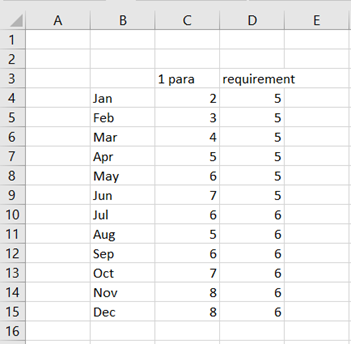
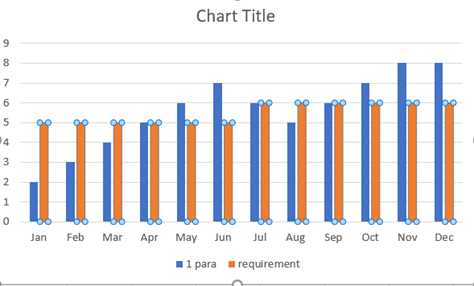
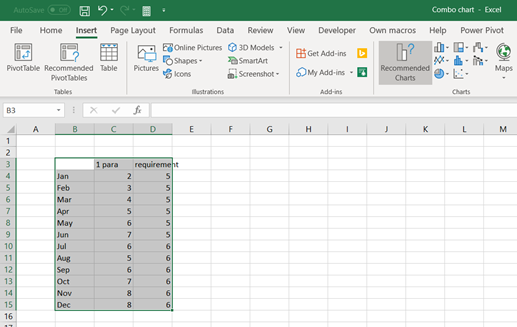
Data here represents monthly values for parameter one. Required level for parameter one is five for H1 and six for H2. Data should be published graphically.
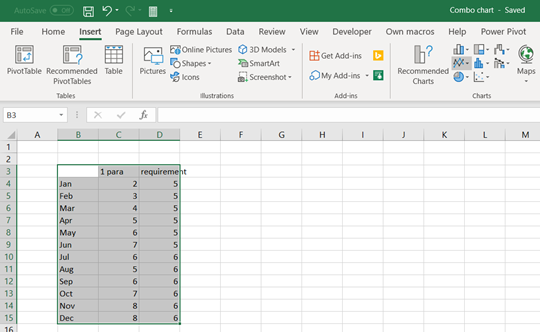
Activate the data and press line symbol under insert ribbon.
Select the first icon in the row.
Blue line values are parameter values and orange the requirement values.
Alternatively, you can select
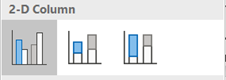
The bar icon.
Select the first icon in the row.
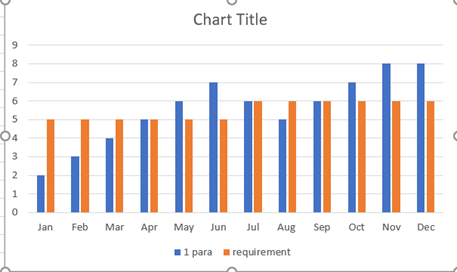
Both data series, parameter and requirement, are shown as bars.
Maybe the best option would be a combination between the two chart types, bars and lines, like in two earlier examples. Parameter one would be bars and requirement a line. If the bar crosses the line, then the parameter is above the requirement. If the bar stays under the line, then the parameter has not met the criteria that month.
This can be selected in several ways in Excel.
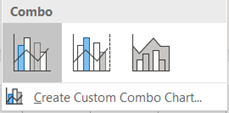
Activate the data and select the combo symbol in chart.
Select the icon for the ribbon.
Now it looks good, at least for me.
If you have already selected bar chart.
Activate the requirement values and press right mouse click.
Select Change series chart type to line.
Select all charts view and press the first icon in the header.
Select insert- recommended charts.
Select All charts view and press Combo in vertical bar. Then open chart type selection for requirement.
Requirement
values are presented as stacked area. You can browse other chart types, too.