Category Archives: Excel

Substituting Scandinavian letters

You might have faced the issue that the system does not understand Scandinavian letters ä, ö or å. Instead, the normal a or o should be written instead of ä, ö or å. This will happen with email addresses. I will show an example of emails bit later.

Yrjö Pyykkönen should be written as Yrjo Pyykkonen.

This we can tackle with SUBSTITUTE function.

The function consists of three main arguments: the text where substitution is done, the value to be substituted and the value to substitute.

In this case, we are checking the value in B3 cell. If there are any “ö” letters, those are substituted by “o”.

This does not substitute capital letters, like “Ö”.

Only minor ö was substituted.

However, we can create a nested SUBSTITUTE.

The sentence in D3 is =SUBSTITUTE(SUBSTITUTE(B3;”ö”;”o”);”Ö”;”O”).

If you want to substitute “å” and “ä” to “a”, and “ö” to “o”, both capital and small letters, then the sentence is:

=SUBSTITUTE(SUBSTITUTE(SUBSTITUTE(SUBSTITUTE(SUBSTITUTE(SUBSTITUTE(H3;”Ä”;”A”);”Å”;”A”);”Ö”;”O”);”ä”;”a”);”å”;”a”);”ö”;”o”)

Let’s see how the sentence works in practice.

Fill the first name and the last name. Then create an email address for the person.

Select data – flash fill (under data tools).

AI based functionality is creating the email address for all the names based on the model for the first name. This is supervised learning for AI.

Looks good, but Åke Sandström has Scandinavian letters in the email. Scandinavian letters should not be in the email.

The sentence in the cell E3 is =SUBSTITUTE(SUBSTITUTE(SUBSTITUTE(SUBSTITUTE(SUBSTITUTE(SUBSTITUTE(B3;”Ä”;”A”);”Å”;”A”);”Ö”;”O”);”ä”;”a”);”å”;”a”);”ö”;”o”)

After the Scandinavian letters have been substituted, the emails can be created based on names without Scandinavian letters.

Sum If Not

When we normally use SUMIF or SUMIFS we calculate the sum for values which are fulfilling a criterion. Now we are calculating the sum for exclude condition.

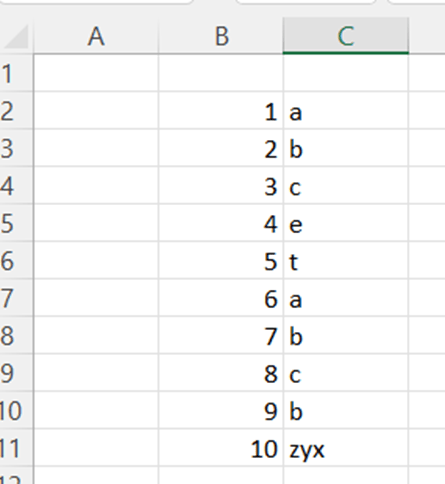
You have a list of values in B column and a letter in C. You need to count the sum for all the other letters but not a, b, and c. We know which values need to be left out.

If the value in C column is something else than a or b or c, then you should count the sum in column B.

This can be done in several ways.

The IF sentence in in D3 is =IF(NOT(OR(C3=”a”;C3=”b”;C3=”c”));”X”;””).

If C3 is not a, b, or c, then mark X, if C3 value is a, b or c, then leave the value blank.

Then the SUMIF is counting the values with X.

If you remove NOT formula and change X from if_value_true to if_value_false, you will get the same result.

I just use NOT formula very seldom, so I wanted to test NOT here.

An advantage with this solution is that it is easy to visualize but the disadvantage is that you need to add one new column.

Another way is to calculate with SUMIF what is the sum for a + sum for b + sum for c. Then the total is diminished by three SUMIF formulas.

The sentence is =SUM($B$3:$B$12)-(SUMIF($C$3:$C$12;”a”;$B$3:$B$12)+SUMIF($C$3:$C$12;”b”;$B$3:$B$12)+SUMIF($C$3:$C$12;”c”;$B$3:$B$12)) .

Now we don’t need to add an extra column but the sentence is quite long.

One solution is to use SUMIFS function. SUMIFS holds several criteria, when SUMIF operates with just one criterion.

The sentence is:

=SUMIFS(B3:B12;C3:C12;”<>a”;C3:C12;”<>b”;C3:C12;”<>c”) .

First, we define the sum range B3:B12. Then we have criteria range for the first criteria, that is C3:C12. The first criterion is that value should not be a, that is written “<>a”. The second criterion has the value “<>b” and the third “<>c”.

For me, the first example with an additional column is the clearest way to calculate the excluding sum if. That means creating an additional column, but I still prefer that way.

Count playing cards

After playing cards, you will count points of all the cards you have at hand. Ace is 14, king 13, queen 12 and jack 11. Number cards have the value according to number. The one who has the highest or lowest score is the winner.

It is easy to count but only picture cards have letters, which need to be converted to numbers.

Excel can help you or at least make counting a bit faster.

First we are introducing the variables. Z_val is the value of cards. Z_start is the address of the starting cell address. Z_val is set to zero. The program starts going downwards the cells. If the cell contains A then 14 is added to  z_val,  K is 13, Q is 12 and J is 11.

The number cards have their own value, like 6 is 6 and 7 is 7. To define which cell contains the numeric value, we can use Excel function ISNUMBER. In Visual Basic we can use Excel functions with WorksheetFunction extension.

The macro goes downwards cell by cell adding the sum value z_val, till the macro hits the first empty cell. Then macro jumps back to start cell and enter the sum value z_val into cell one above the start cell z_start.

Here is the macro:

Sub z_cards2()

Dim z_val

Dim z_start

z_val = 0

z_start = ActiveCell.Address

Do Until ActiveCell.Value = “”

If ActiveCell.Value = “A” Then

    z_val = (z_val + 14)

ElseIf ActiveCell.Value = “K” Then

    z_val = (z_val + 13)

ElseIf ActiveCell.Value = “Q” Then

    z_val = (z_val + 12)

ElseIf ActiveCell.Value = “J” Then

    z_val = (z_val + 11)

ElseIf WorksheetFunction.IsNumber(ActiveCell.Value) Then

    z_val = (z_val + ActiveCell.Value)

Else

    z_val = z_val + 0

End If

ActiveCell.Offset(1, 0).Select

Loop

Range(z_start).Select

ActiveCell.Offset(-1, 0).Select

ActiveCell.Value = z_val

End Sub

In B6 we have a value which does not have any value in our calculations as there is no Z-card in playing cards.

Place the cursor in B4 and execute the macro.

Z-card was not counted. If you mistakenly enter a wrong letter, the macro can handle that by passing the cell.

Excel macro was counting the points for each player. Of course, you could have done that manually too, but Excel can be used also for counting playing card points.

Values above or below average

A list of sales reps and sales amounts. Which ones of sales reps have sales amount higher than average sales.

One way is to write an IF sentence.

Sentence in D3 is:

=IF(C3=(AVERAGE($C$3:$C$12));”ave”;IF(C3>(AVERAGE($C$3:$C$12));”above”;”below”))

If value is equal to average value, then the result is ave, if value is not average and if the value is above average then the result is above, if the value is not in average and it is below the average, then the result is below.

The conditional formatting has also feature above and below average. If you select the data range C3:C12 and select home – conditional formatting – top/bottom rules – above average, then the values higher than average are highlighted.

The cells above the average are coloured. The same cells are highlighted as with IF sentence.

You can count the values above average with MS Access.

Table Ave was created.

The table consists of sales rep and sales amount. ID field is a running number.

Same data is entered as in Excel was keyed in Access.

An SQL query is written to detect the values below and above average. The logic is same than in Excel. In Access if is IIF.

SELECT sales,

IIF(sales = (SELECT AVG(sales) FROM ave), ‘avg’, IIF(sales > (SELECT AVG(sales) FROM ave), ‘above’, ‘below’))

FROM ave;

The results are the same as in Excel.

When comparing these three methods, I think that conditional formatting is the easiest and fastest way to calculate which values are above or below average. No manual logic is needed when conditional formatting is used. Normally, Access is not used for calculation like this, but SQL is a very powerful tool for many analytical tasks.

Counting three million records

I have blogged how to count values in the data range, like how many times letter “A” appears in the data range. Let’s take such a large data range that it does not fit Excel workbook.

I have a text file with good 3M rows of values. Each line holds value either A, B, C, or D.

How many times does the letter “A” exists in the file ? We cannot count with normal Excel COUNT. As the data does not fit normal Excel workbook.

3M rows were loaded into Excel data model.

We use COUNTA function in DAX.

The formula is: =COUNTA(C3M[Val]) .

C3M is the table and Val field.

Pivot settings.

The results per letter.

Next step is to count percentual division between four letters. Therefore, we need to count the total number of rows.

The formula is: =calculate(COUNT(C3M[Val]),ALL(C3M))

The CALCULATE formula calculates the total number of rows in the data range.

To have the percentage distribution, we need to just divide count of each letter by total number of rows. To have the percentage value, the format is percentage.

The formula is: =divide([Count],[Count_all]) .

We divide one measure with another.

The letter A counts for a half, other letter divide the remaining half.

Count_all measure is counting with CALCULATE the total number of records. The expression for CALCULATE is table C3M and field Val, the filter is ALL as we are counting all the records in the table.

One option is again to use MS Access, as Access can take 3M rows of data.

The table has two fields running number and the letters in VAL field.

A simple SQL query, just remember the square brackets around the table.

The results in absolute number.

Here is the SQL query to count percentage values. How many percents of all the letters is letter “A” ?

SELECT C3M.Val, ROUND(Count(Val)/(SELECT COUNT(*) FROM [C3M]), 2) AS Expr1

FROM C3M

GROUP BY C3M.Val;

Now the square brackets were not needed with FROM command. To have percent values, we need to take the total number of letter “A” rows with Count(Val). That is divided with all the records in the table (SELECT COUNT(*) FROM [C3M]). In order to decrease the number of decimals, ROUND function is framing the division calculation.

Every second letter in the data range is “A”. Remaining letters B, C, D are dividing evenly remaining half.

SQL is powerful tool to calculate numeric values out of a large data. When using DAX we needed few formulas, but with SQL we needed only few lines. In case you want to present distribution of the four letters, you can easily create a graph like this in Excel.

Moving average in Excel

In this blog, I demonstrate four ways to calculate moving averages in Excel: with AVERAGE function, using data analysis, with OFFSET function, and adding moving average as trendline in a graph.

You can count manually the moving average. In the cell B6 we count average A2:A6. In the following the cell B7 the average is counted from A3:A7 and so on.

Another way is to install analysis toolpak in Excel option.

Then select data – data analysis – moving average.

Toolpak include different kinds of tools, but we are concentrating only on moving average.

Input range is the data range. Interval is five, we are taking average for five values. Output range is in B-column next to the values.

Press ok.

Excel created the averages automatically. As interval is five, first four values cannot have averages.

The moving average can also be done with OFFSET function.

In B6, we have an OFFSET function which has the reference in A2, then we do not move anywhere from A2 but just take five steps downwards. Then we activated area A2:A6. The nested function is taking AVERAGE from A2:A6. In the cell, we have a reference in A3 and function works fine.

This way is somewhat complicated but returns the same values as other options.

You can also add moving average into a graph.

Activate the data range and take insert – the graph.

Activate the line and take right mouse button, then select add trendline.

Select moving average and period 5.

As default the average line is quite thin, you can add value in width parameter.

Moving average in the graph.

Dynamic SUM last five values

You have sales values per day. You need to calculate the sum from last five days. When new values are added, the Excel needs to count only the five last values.

For example, if data is this:

2

3

4

5

6

2

the result is 20 (=3+4+5+6+2).

For the data

2

3

4

5

6

2

1

The result is 18 (=4+5+6+2+1).

First, we need ROW function.

The function returns the row number of the chosen value. A5 is in the fifth row.

We need to find the highest value for ROW function to find the last value in the array.

That we can do with the following statement:

=MAX(IF(A:A=””;;ROW(A:A)))

We are looking for the highest value, we need MAX function. If value in A-column is empty, the MAX should ignore that, if the value is not empty, then MAX is looking for the highest value in A-column. As we did not specify range, but stated just A:A, is the range whole A-column.

Now we should count the sum from rows 5 to row 9. For the step, we need OFFSET function, which I have covered in my earlier blog postings.

Offset-function consists of following arguments:

  1. Reference. Where is the starting point of the formula ? That is always A1 as there is the first value of the array.
  2. Rows. How many steps the formula takes downwards from starting point. We have nine values in the array and last five should be counted, the starting point is the row 5. OFFSET is taking four steps downwards.  
  3. Columns. How many steps the formula takes to the right from A5. We have all the values in one column, the value is therefore zero.
  4. Height: How high is the area starting from A5. Five means the area of A5:A9.

The OFFSET is activating the range A5:A9, nested function SUM is summing the range.

The next step is to change static values into dynamic values.

The arguments are:

  1. Reference is always A1.
  2. Rows. Number of rows is counted as the highest row number in the range minus C4, which is five. Maximum row number is nine, that minus five equals to four. If you would like to sum for example four last values, change C4 to four.
  3. Columns. No need to have other columns, value is always zero in our case.
  4. Height: The range is five last numbers from C3.

Let’s do a test to see that the sentence is working.

=SUM(OFFSET(A1;MAX(IF(A:A=””;;ROW(A:A)))-C4;0;C4))

If you want to calculate eg. average for the last five values, just change SUM to AVG.

Remove duplicates

You have a set of data. Duplicate values should be removed, so that only unique values are left. This can be done in multiple ways.

ID                       Product

1                         A

2                         A

3                         B

4                         O

5                         O

6                         U

7                         U

8                         U

9                         W

10                       K

11                       A

12                       S

We have a simple data running number (ID) and list of products. We should remove the duplicates and just see each different product once.

Data – data tools – remove duplicates

Maybe the most common way is to use remove duplicate functionality. Activate the data and press duplicate functionality button.

Press ok.

The duplicates were removed, and unique values are left in the list. As you noted, the functionality is overwriting the data. If you use this way, take a copy from the data and use remove duplicates for your copied data. Then you have originals untouched.

Conditional formatting

Select home – styles – conditional formatting – highlight cell rules – duplicate values

Select unique and press ok.

Here unique means that the product is listed just once. For example, A appears three times, there A is not unique. My thinking is that, if we take unique values, we take all the product listed just once. For example, product A is also listed and in unique values A is listed just once. Out of 12 values, we have seven unique values. According to conditional formatting, only four are unique.

This is a good way if you don’t want to change the data but just visualize the duplicates.

UNIQUE function

Write the UNIQUE and select the data, press enter.

The advantage with UNIQUE is that your original data and unique values are neatly separated.

COUNTIF function

Write in C2 =COUNTIF($B$2:B2;B2) and copy the formula downwards till C13. When the formula hits the first A in B2 the formula checks how many A letters are in B2:B2, and there is just one. In B3 the formula hits A again. Now the formula checks As in B2:B3, the formula returns 2.

Filter only number ones, and you have removed the duplicates.

You can also use Access to remove the duplicates.

The table consists of two columns running number ID and the product values. Data is similar than in Excel.

Create query at create – queries – query design.

Press property sheet.

You need to select unique values as “yes”.

Then drag the table to the middle of the screen.

Double click product field.

Run with exclamation mark. You get the results, seven unique values.

If you want to load the data from Access to Excel, select external data – export – Excel.

You can see the SQL, too. Select view- SQL view in query design.

As you noticed, we have many ways to find unique values and remove duplicates. Most often, I have used the first option, remove duplicates functionality. Also UNIQUE function is handy.

Value added tax functions

If you are handling values both with and without value added tax (=VAT), you occasionally need to split values with VAT to values without VAT and VAT itself.

For example, 100 includes VAT 24 %. The value without VAT is 80,65 and VAT 19,35. We are working with two decimals.

Values are counted this way: 0,24/1,24*100 = 19,35 and 1/1,24 * 100  = 80,65.

You can calculate this way.

If you are repeating this process frequently, you might want to create your own formula. Also rounding to two decimals could be added into the formula.

Function z_vat(sum, per)

    z_vat = Application.WorksheetFunction.Round((per / (1 + per) * sum), 2)

End Function

Function z_vatzero(sum, per)

    z_vatzero = Application.WorksheetFunction.Round((1 / (1 + per) * sum), 2)

End Function

Write these formulas in Visual Basic editor. Functions are returning value for z_vat or z_vatzero with two input values sum and per. Sum is the sum with VAT and per is VAT percent.

Round function is used to limit the decimals to two. With Application.WorksheetFunction you can use normal Excel function in VBA.

Save the functions under personal workbook to have functions in use in all the Excel workbooks.

When writing a function, select fx insert function icon.

Select a category user defined function.

You can still double check. 80,65 * 0,24 =19,35.

As said, only input parameters are the sum and the percentage. The result of user defined function is already rounded.

Dates in reporting

You have sales data with dates. When you take reports, we are not interested in dates but rather sales per month and year.

The columns are product, sales date, and sales volume.

We would like to know what the sales would have been for product a in Nov 2019 ?

Easiest way is to add extra columns to define year and month.

The column E is populated with MONTH formula and F with YEAR.

The November 2019 sales for product A can be counted this way.

First argument is sum column, which means column C as we have there the sales volume. Then we show where the product data situates, that is column A. Then the product we are interested is a in the cell I2. The range for month is in E column and the month value in J2. Similarly, the years are in F-column and year criteria in K2.

During Nov 2019 altogether 12 pieces of product ‘a’ were sold.

Another option is to use SUMPRODUCT function. The product information is in A-column, criteria which product is searched for is in F4. The dates are in B column, the criteria is in G4 inside the MONTH formula and the criteria for year in H4. Finally, sum column is in C2:C13. The arguments are separated by multiplication sign.

The sentence is here:

=SUMPRODUCT((A2:A13=F4)*(MONTH(B2:B13)=G4)*(YEAR(B2:B13)=H4)*(C2:C13))

For me, SUMPRODUCT is more compact than SUMIF. With SUMIF you need to add extra columns. If you handle large data sets, make new calculated columns the data even larger. As with SUMPRODUCT, you can embed month and year formulas inside SUMPRODUCT.

Just for comparison, I downloaded the same data into MySQL table.

I think, SQL is easiest of all.

SUM IF NOT

You have a sales report with sales value and a dimension. Normally, you calculate certain dimensions like a, b and c equals to something. Like how much is the total sales for dimensions a, b, and c.

A, b, and c dimensions can be calculated with following sentence:

=SUMIF(C2:C11;”a”;B2:B11)+SUMIF(C2:C11;”b”;B2:B11)+SUMIF(C2:C11;”c”;B2:B11)

First SUMIF counts the totals for dimension a, second for b, and third one for c. After that all the SUMIFs are summed together. The formula returns the value 36.

If you need to exclude dimensions ? You should calculate other dimensions than a, b, and c. What is the sales volume for other dimensions than a, b, and c? One way is to calculate the total and then minus the sentence above.

=SUM(B2:B11)-(SUMIF(C2:C11;”a”;B2:B11)+SUMIF(C2:C11;”b”;B2:B11)+SUMIF(C2:C11;”c”;B2:B11))

Using SUMIFS function, you can use the sentence below.

=SUMIFS(B2:B11;C2:C11;”<>a”;C2:C11;”<>b”;C2:C11;”<>c”)

First you need to show the values in B2:B11, then dimensions C2:C11 and which dimension are we looking for not equal to a, not equal to b, and not equal to c.

Another way to calculate other dimensions than a, b and c:

=SUMPRODUCT((B2:B11)*(C2:C11<>”a”)*(C2:C11<>”b”)*(C2:C11<>”c”))

The logic with arguments is somewhat similar to SUMIFS. First, you need to show values B2:B11 and then dimensions and which dimensions are excluded.

For me, both SUMIFS and SUMPRODUCT are simpler than SUM/SUMIF.

SWITCH function

Here is one practical example to compare IF and SWITCH. Instead of theory, let’s jump into practice.

In reporting I have had a habit to abbreviate the months as P1, P2, P3 and so on meaning January, February, March and so on.

If the month is in B3, you can convert period and number codes into month with IF-function below.

=IF(B3=”P1″;”Jan”;IF(B3=”P2″;”Feb”;IF(B3=”P3″;”Mar”;IF(B3=”P4″;”Apr”;IF(B3=”P5″;”May”;IF(B3=”P6″;”Jun”;IF(B3=”P7″;”Jul”;IF(B3=”P8″;”Aug”;IF(B3=”P9″;”Sep”;IF(B3=”P10″;”Oct”;IF(B3=”P11″;”Nov”;IF(B3=”P12″;”Dec”))))))))))))

This works, but sentence is quite long and not so clear at first sight.

However, with SWITCH you can do  the same bit easier.

=SWITCH(B3;”P1″;”Jan”;”P2″;”Feb”;”P3″;”Mar”;”P4″;”Apr”;”P5″;”May”;”P6″;”Jun”;”P7″;”Jul”;”P8″;”Aug”;”P9″;”Sep”;”P10″;”Oct”;”P11″;”Nov”;”P12″;”Dec”)

SWITCH function is quite straightforward. First you need to define the cell where is the value. That is B3 in our case. Then you specify if the value is like P1, then which value the function should return, that is Jan. If the value is P2, then SWITCH returns Feb. Please, note that when B3 is once defined, we don’t have to repeat the cell address.

One benefit with SWITCH is that you don’t have to count parentheses.

It is easier to nest the SWITCH than IF above.

Say, you have month and year as P5/21 meaning May 2021. This should be changed to May/21. The SWITCH above is not enough.

First, we need to extract P5. The slash might be third or fourth digit. This we can do with IF-formula below.

=IF(FIND(“/”;I3)=3;(LEFT(I3;2));IF(FIND(“/”;I3)=4;(LEFT(I3;3))))

If slash is the third digit, then two first digits are selected. If slash is the fourth digit, then three first digits are selected. From P5/21, only P5 is returned.

The sentence in F3 is below.

=SWITCH(IF(FIND(“/”;E3)=3;(LEFT(E3;2));IF(FIND(“/”;E3)=4;(LEFT(E3;3))));”P1″;”Jan”;”P2″;”Feb”;”P3″;”Mar”;”P4″;”Apr”;”P5″;”May”;”P6″;”Jun”;”P7″;”Jul”;”P8″;”Aug”;”P9″;”Sep”;”P10″;”Oct”;”P11″;”Nov”;”P12″;”Dec”)&(RIGHT(E3;3))

Here we combine the IF which is taking the P5 from P5/21. Then SWITCH is switching P5 to May. Finally, three last digits in E3 are added at the end of F3.

Think if you still had IF instead of SWITCH, the sentence would be even more complex. With SWITCH the sentence is clearer to comprehend. SWITCH makes possible to build longer sentences easier than IF, that is my opinion.

Consolidation

You have set of reports, the structure is not identical throughout the reports. Let’s see what Excel consolidation can do.

Icon for consolidation can be found under data menu, and top right-hand corner in data tools section.

We have sales reports from three regions North, South and East. Each of region consists of four sales representatives who are selling trucks, vans and automobiles. The reports have two dimensions.

Report from South.

Report from North.

Report from East.

As you noticed, the files have been named according to the geographical region.

Sales rep Jeremy works only in East region replacing Jack. He works in South and North.

Open the consolidation Excel sheet and press the consolidation icon.

The consolidate box appears. I placed the cursor in B2 cell in each of the reports.

The function is SUM as we are summing up all the three regions.

I activate all the three parameters under “Use labels in”.

I pressed the arrow up at the end of the reference window and consolidate -reference window opens.

Just open the first report and activate the data range. Press enter.

Press add.

The reference is moved to all references window.

Empty reference window and press the arrow at the right-hand side of the window.

Browse the data range in the next report and press enter.

Again, press add.

Empty the reference window and press the arrow up.

Browse the data range from the last report and press enter.

Add the last data range into the all references window.

Empty the reference window and press ok.

This report appeared in the consolidation Excel. The main window includes sales reps and product categories. The regions are not visible.

If you press number two in left-hand side margin. Then the region-specific division appears. Note that the product line, like trucks, is the sum line. For example, Jill was selling three trucks in all the three regions.  The Excel correctly calculates the different sales reps. 

Consolidation might be handy sometimes, if you combine data tables which are not totally equal. A benefit with consolidation in Excel, is that it is easy to take into use. It does not take long time to comprehend the feature.

SUMIF with asterisk

You have data with date format DD-MMM-YYYY like 24-Jun-2022. You need to create a report to sum the sales data per month.

Here is a sample data. The report is needed about sales volume per month.

We can use SUMIF function. We need three arguments:

  1. Range: the column for dates, where the months are found.
  2. Criteria: which month we are examining.
  3. Sum range: where are the values to be calculated.

As months are abbreviated in column A, and the months are in the middle of string, we need to find the January asterisk Jan asterisk.

The sentence is here:

=SUMIF($A$3:$A$42;”*jan*”;$B$3:$B$42)

Another case is that month is a value in a cell not inside the function argument.

The Excel understands the second argument as * Jan *. Therefore we need to have asterisks in quotation marks. The dynamic cell reference needs to be separated with ampersands from the static asterisks.

=SUMIF($A$3:$A$42;”*” & E4 & “*”;$B$3:$B$42)

Scenario Manager

Scenario manager functionality can be used to simulate and  compare different scenario for example the worst, the most probable and the best scenario.

Let’s use the data we had for the previous blog.

This is the most probable or normal scenario.

Volume                48

Price                     32

Var cost               18

Fix cost                700

The best scenario would be

Volume                55

Price                     33

Var cost               17

Fix cost                680

The worst scenario would be

Volume                46

Price                     30

Var cost               18,5

Fix cost                715

Of course, we can make three different cost volume profit analyses, but we can also use scenario manager functionality.

Select data – what if analysis – scenario manager

Press add.

Fill accordingly. Note, that in changing cells we are entering a range B2:B5. Separate cells could be entered, too.

This is the normal scenario. In the input box the cell addresses are visible. You need to map in your mind that volume is B2, price is B3 and so on.

Press again add to create the best scenario.

Fill the best scenario values.

Press ok.

Press add once more.

Create the worst scenario.

Fill the values for the worst scenario.

Select a scenario and double click it. When I double clicked the best scenario, the values were updated into B2:B5. Also the results were updated.

This way you can update the scenarios into Excel model.

If you press summary.

In the summary we are comparing the margin and the result. Press ok.

Excel created a Scenario Summary view. Here we can see that current values are the same as the best scenario. The values are identified by cells not by the real names in one column left.

The changing cells are

B2: Sales volume

B3: Sales price

B4: Variable cost per unit

B5: Fixed costs

Results:

F4: Margin

F6: Result

The best scenario is generating the best values as all the changing cells have the best values. The result is clearly positive. Unlike the worst scenario, which have all the lowest sales values and highest cost values. Therefore the result is clearly negative.

With scenario manager you can compare how different scenarios affect your calculations. First, you need to key in the scenarios. After that you switch from scenario to another by clicking each scenario and see how the different scenarios affect your calculations.

Goal Seek

In this blog I will present goal seek functionality and how it can be used in cost profit volume analysis.

First, let’s check goal seek with a simple example.

B2 plus C2 equals to D2. If you want D2 to be four, which value should be in C2 ?

Choose data – what if analysis – goal seek.

D2 should be four by changing the value in C2.

Excel counted correctly.

This is basic cost volume profit analysis. Sales is counted by sales volume multiplied by sales price. Variable costs are sales volume multiplied by variable costs. Margin is sales in money minus variable costs. Result is margin minus fixed costs. The result is slightly in negative territory. Margin percentage is margin divided by sales. Result percentage is result divided by sales.

How much should price per unit be that the result would be to reach the zero result (break-even) when all the other parameters are remaining as they are ?

The result is in F6 cell, that should be zero by changing the price in B3.

The result.

Let’s take bit more complex case.

What the sales volume should be that the result percentage is +5 % ? When the sales volume increases, also the variable costs are increasing linearly.

The values are with several decimals.

You can create other examples.

OFFSET for transpose

I have written blog about OFFSET earlier. Recently, I found one good application for OFFSET.

When you load data from system to Excel, the data needs to be rearranged.

Five columns and many rows. This is the way how the data looks in the system.

When you download the data, the data is in one column, between the rows in the system there are two empty cells.

The data should be modified as it is in the system, five columns and many rows. You can copy cells (A2:A6) and paste with transpose to have five cells horizontally. This takes time if you have 10000 values.

This can be tackled with OFFSET function.

Let’s have a short summary about OFFSET.

OFFSET consists of five arguments.

  1. Reference. What is the starting point in the top left hand corner of the area.
  2. Row. How many steps do you take from reference downwards, if the value is positive.
  3. Col. How many steps do you take from reference to right, if the value is positive.
  4. Height. How high is the selected area.
  5. Width. How wide is the selected area.

Here is an example. The start cell is B3. Then we go two steps downwards, that is B5. From B5 we go two steps to right. The area is just one cell ( one times one). That is five.

The function in B10 is =OFFSET(B3;C10;D10;E10;F10) .

The OFFSET can be framed with another function like SUM.

The function in B10 is =SUM(OFFSET(B3;C10;D10;E10;F10)).

The area is two steps down from B3, that is again B5. Then we go three step to right to E5. Then area is two times two, from E5, (E5:F6). SUM(E5:F6) equals to 28.

Let’s move from theory to practice.

To use OFFSET function, we define A2 as the reference, it could also be A1, but I just picked up A2.

The second argument in OFFSET, row, is varying argument as the all the values are vertically.

The first function to extract the first value is =OFFSET($A$2;0;0;1;1) .

When the first value is taken, we don’t have to go anywhere from A2. Both row and col are zeroes. The area is just one cell, the height and width are one.

To extract the second value, all the arguments are same except row which bust one higher than previous time =OFFSET($A$2;0;0;1;1) . As the data is in one column, we don’t have to adjust col. Each time we are looking for one value and one cell, therefore height and width are always ones.

Between 5th and 6th values are two empty rows. After the 5th, the row value must equal to previous value plus three.

In cells (I2:M4) I have inserted the row values. J2 is simply I2+1. When row the changed I3 value is M2+3.

The row values are taken into the function from (I2:M4) area. Other argument values are static.

Data here is pretty small, but same solution works for 10000 cells, and it does not take too much longer time than for three rows.  

COUNTA in accounting

You have a balance of 5693 in a cost center. This balance should be divided equally to multiple cost centers. You create an Excel and enter that into system to have a manual journal entry.

To make the process bit smoother we can use COUNTA function.

Presuming, the balance in the cost center CCM is positive and the cc should be zeroed by dividing the plus to several cost centers. One way is to increase costs to CCM in debit and post negative costs in credit for the multiple cost centers.

The sentence in D3 is =ROUND($C$2/(COUNTA($A$1:$A$24)-1);2).

The balance in CCM is divided by number of cost centers in A-column minus one (CCM). This is done if you add lines for dividing the balance for several other cost centers. The division is rounded by two decimals.

New cost centers are added but the sentence is not changed.

Before you post this journal entry, you want to check the roundings. Now debit is 5693 but credit 5693,04. The journal entry would not be posted as debit does not equal to credit. You can manually add the numbers to have equal debit and credit. A simple way to adjust the debit balance if you want all the receiving cost centers to have the same balance. In that case, cost center CCM would have a balance of -0,04. If the cost center may not have negative value, then you need to adjust credit balances.

There is one process question to be notified. As we post credit balance for expense accounts, that will create a negative total if there the balance is in the cost center lower that 632,56. For example, in cost center CC1 there is no postings for the account 5000. Then credit posting makes the balance for CC1/5000 negative, which is increasing the balance in CC1. If you take a report for CC1, the report might look unusual to show negative costs.

Another way is to create percentages instead of absolute numbers for each line.

The percentages must equal to 1, like the value in F1.

The sentence in D3 is =ROUND(F3*$C$2;2).

If you want to adjust percentages and divide the balance unequally to cost centers, the formulas can be overwritten. This was done in F5 and F9.

COUNTA might not look like a breakthrough in accounting, it can still fasten the process when creating a long journal entry. Once the model is made, it can hopefully be used with several journal entries.

Search and count

You have a data range and you should find how many times certain character exists within the data area.

This can be done easily with COUNTIF as follows.

The data range.

Copy the range and select data – data tools – remove duplicates.

Press ok.

The list of 12 values was shortened to 4.

The data range includes unique values D, C, A  and B.

The arguments for COUNTIF are the range where the value is searched and the value which is searched for.

However, if you want to just fast get a number how many times A appears in the data range, we can tackle that with VBA below.

Sub z_count()

Dim cell As Range

Dim arv, cnt

arv = InputBox(“Search term”)

cnt = 0

For Each cell In Selection

If cell.Value = arv Then

cnt = cnt + 1

End If

Next cell

MsgBox arv & “:” & cnt, vbOKOnly, “Search macro”

End Sub

The range selection consists of cell variables. Arv is the value to be searched for. Cnt is the counted value of arv. The data range is browsed through and every time arv is found, that is increasing the value of cnt by one. At the end, the cnt is printed in message box.

Activate the data range and execute the macro.

Select the value to be searched for.

The result is the same with COUNTIF. If you want to list all the values, the COUNTIF is practical. In case you repeat this process many times a day and you just want to get the value, VBA might be the worth of trying.

Flash fill

You will find flash fill functionality under data menu and there in a data tool box.

The icon has a flash in top left hand corner.

An example demonstrates how flash fill works.

In the B-column you have a list data. In the C-column you should take the digits after 123_. The C5 should hold value dr43 and so on.

Activate the C4 and press flash fill.

That saved some time.

When you press flash fill options, you will get following parameters.

Undo simply removes what flash fill just filled. Accept suggestion simply fixes the new values and the option box disappears. Select all 4 changed cells activates the cells C5:C8.

Another example is if you want to round down the numbers with several decimals. Just enter 423 manually into D3 and press flash fill.

Press flash fill.

The results are correct.

The same results can be achieved by ROUNDDOWN.

You have list of names.

You should create email addresses based on first name and last name. In D2 there is an example. Note that D2 needs be a static value not a formula.

Place the cursor in D2 and press flash fill.

It is difficult to find out all the examples when flash fill could be useful. In case you face a situation that you need to create a new column based on another column, just don’t forget flash fill. It might be useful.

Vlookup in reporting

You have a report of actual figures, then you also have two budgets B1 and B2. You would like to compare the two budgets to actual in turns.

In our example, data is very small to characterize the solution.

To find the budget, we will use VLOOKUP function.

The formula in B2 is simple =VLOOKUP(A2;$A$11:$C$16;2;FALSE).

However, as the 490 was not budgeted, there is no budgeted value for 490, but just #N/A. That cell cannot be used in calculation.

This can be tackled with ISERROR function. If VLOOKUP returns an error, the IF returns just an empty cell.

=IF(ISERROR(VLOOKUP(A3;$A$11:$C$16;2;FALSE));””;(VLOOKUP(A3;$A$11:$C$16;2;FALSE)))

We should have a parameter when we change the parameter, then we could switch B1 to B2 or visa versa.

The VLOOKUP consists of four arguments.

  1. Lookup value: the number of the unit.
  2. Table array: the budget area.
  3. Column index number: how many steps we take from column A to right.  A itself is counted as one.
  4. Range lookup: is the exact lookup value searched for or an estimate.

The difference between B1 and B2 is that column index number must be for B1 two and for B2 three. As we need to take one more step from B1 to B2.

We also need to have a surrounding IF sentence to define whether we want to have B1 or B2.

E1 is the parameter to select B1 or B2. If neither of B1 or B2 is selected, then the budget column should be empty.

The sentence is here for copy pasting.

=IF($E$1=”B1″;IF(ISERROR(VLOOKUP(A2;$A$11:$C$16;2;FALSE));””;(VLOOKUP(A2;$A$11:$C$16;2;FALSE)));IF($E$1=”B2″;IF(ISERROR(VLOOKUP(A2;$A$11:$C$16;3;FALSE));””;(VLOOKUP(A2;$A$11:$C$16;3;FALSE)));””))

First the sentence checks whether E1 holds B1 or B2. If the value is B1, then just use VLOOKUP and column index number is two. If the result is error, then return an empty cell. If E1 equals to B2, the VLOOKUP has column index number of three and return the third column in table array. If the value in E1 is something else than B1 or B2, then just empty values are returned.

Date to month/year

In a report, dates should be presented in month/year format.

Instead of 23.2.2020 the report should show 2/2020.

Just use MONTH and YEAR functions.

We get same results also with string function MID, SEARCH and RIGHT.

The sentence is here for copy pasting.

=MID(B2;SEARCH(“.”;B2)+1;SEARCH(“.”;B2;SEARCH(“.”;B2)+1)-SEARCH(“.”;B2)-1) & “/” & RIGHT(B2;LEN(B2)-SEARCH(“.”;B2;SEARCH(“.”;B2)+1))

First, we have a MID function which extracts number of digits from the middle of the string. The MID includes three arguments: where the extract is done, where the extraction starts and how many digits are to be extracted.

We are extracting the digits inside the cell B2, we start extracting the digits starting from the digit after the first dot. When the value is 23.2.2020, the extract starts from the 4th digit. The number of digits to be extracted is the ordinal number of the second dot, 5th digit, minus the ordinal number of the first dot plus one equals to 4. Then we extract from B2, starting from 4th digit, just one digit.

We simply place the stroke between the months and the year.

The second function is RIGHT. Two arguments are needed: where to extracts and how many digits from right is extracted.

The formula takes digits from the cell B2, the number of digits to be extracted is 5. The length of the cell, how many digits are there in the cell B2 is 9. The second dot plus one equals to 5. The number of digits to be extracted is nine minus five.

Third option is format cell category to custom, then change type to mm/yyyy. So, two digits for the month and four digits for year.

In my Excel k represents month and v year.

The month is presented with two digits, February is zero two.

Find a string

You need to browse the data to see if a certain string like exists “ab” in cells.

This can be done with FIND function. The arguments are what to find, in this case “ab”. The second argument is where to find, in the cell C3.

If the function finds the string, the formula return the running number where the string starts in the cell. The value in B5 is sdab, the “ab” starts in the 3rd digit.

If the FIND formula does not return any value, the result is #VALUE, which is not very user friendly.

ISERROR formula defines whether the FIND returns a usable value or not.

Combine the two formulas.

We need to write an IF statement, if FIND formula returns an error, then IF return blank cell. If IF does return an error but the number where ab starts, then IF return “ab is here”.

Now the results are easily readable.

The sentence is here =IF(ISERROR(FIND($C$2;B4));””;”ab is here”) for copy pasting.

Email generator

You have list of names, like Firstname Lastname. The email addition is comp.com. So the email should be Firstname.Lastname@comp.com.

This is quite simple. In A-column you have names and in C-column the company extensions.

The formula in E1 is =LEFT(A1;(FIND(” “;A1))-1) & “.” & (RIGHT(A1;LEN(A1)-(FIND(” “;A1)))) & “@” & C1 .

First, we take from left digits till space minus one, so the first name is captured. We take four digits from left as the space is the 5th digit. Then dot is added. After that we take digits from right number of digits equal to length of the A1 minus the place of the space. Number of digits in A1 is ten digits. The space is the 5th digit. We take five digits from right. Then we add @ sign and organization information.

The issue is more complex if a family of two persons are in the same line.

If there is Firstname & Firstname1 Lastname and the extension example.com, then the Excel should return Firstname.Lastname@example.com; Firstname1.Lastname@example.com . Then you can copy paste both the emails to Outlook. Sometimes there are two names, sometimes just one.

Like this.

The script in E1 is:

=IF(ISERROR(FIND(“&”;A1));(LEFT(A1;(FIND(” “;A1))-1)&”.”&(RIGHT(A1;LEN(A1)-(FIND(” “;A1))))&”@”&C1);(LEFT(A1;(FIND(” “;A1)-1))&”.”&MID(A1;(FIND(” “;A1;(FIND(” “;A1;FIND(” “;A1)+1))+1))+1;LEN(A1)-(FIND(” “;A1;(FIND(” “;A1;FIND(” “;A1)+1))+1)))&”@”&(C1)&”;”&(MID(A1;(FIND(” “;A1))+2;((FIND(” “;A1;(FIND(” “;A1;FIND(” “;A1)+1))+1))-(FIND(” “;A1))-2)))&”.”&MID(A1;(FIND(” “;A1;(FIND(” “;A1;FIND(” “;A1)+1))+1))+1;LEN(A1)-(FIND(” “;A1;(FIND(” “;A1;FIND(” “;A1)+1))+1)))&”@”&(C1)))

The script got that complex, that I was happy when it was working. So, I did not analyze the script.

Digits between two underscores

You have value in cell like skjfjkjdsf_38476_jflsjk. You should extract value between underscores, as that is the only interesting part in the cell.

It can be the case that there is only one underscore lkfjdsk_3945. Then digits after the underscore are to be extracted.

The first underscore is easy to find. Use the FIND formula. The arguments are what to find and where. The formula returns running number of the digit to be found. Underscore is 11th  digit in the cell B3.

To find the second underscore is bit trickier. FIND formula has third argument is the character at which to start the search. If we start the search from 12th digit onwards, then the following underscore is the second underscore.

The formula in E3 holds three arguments:

  1. What to find “_”.
  2. Where to find in the cell B3.
  3. Where to start. Find the underscore and add one. As the underscore was find in 11th digit, then start find from 12 onwards.

However, if only one underscore exists, then the double FIND formula returns error message. This can be detected with ISERROR formula.

As the formula can not return a value, ISERROR returns TRUE, which looks better than #VALUE!.

Now we added IF-formula.

If the second underscore cannot be found and the ISERROR is true, then take the length of the cell plus one. If ISERROR is not true, the second underscore was found, then return the serial number of the second underscore.

Then we can finalize the sentence.

  1. MID function, starts with the first underscore plus one, meaning the next digit after the first underscore.
  2. Number of digits to be extracted by MID is either the second underscore or the length of the cell plus one. The serial number of the first underscore plus one is minused.

Let’s check the first row in more details.

The value in B2 is fjls_314_djf. The first underscore is 5th digit. The second underscore is found in 9th digit. The first underscore is 5th and plus one equals to 6. The formula is MID(B2; 6; (9-6)).

The value in B4 is fjls_3976. The first underscore is 5th digit. The second underscore is not found, so the IF-sentence returns the the length of the cell plus one, 10. The first underscore is 5th and plus one equals to 6. The formula is MID(B4; 6;(10-6)).

The sentence is here for copy pasting.

=MID(B2;(FIND(“_”;B2)+1);IF(ISERROR(FIND(“_”;B2;(FIND(“_”;B2)+1)));(LEN(B2)+1);(FIND(“_”;B2;(FIND(“_”;B2)+1))))-(FIND(“_”;B2)+1))

Already earlier I introduced VALUE function.

The issue is that even though the sentence returns correct values, they are not numbers and cannot be calculated directly.

However, if you frame the sentence with VALUE, you can directly calculate the results.

=VALUE(MID(B2;(FIND(“_”;B2)+1);IF(ISERROR(FIND(“_”;B2;(FIND(“_”;B2)+1)));(LEN(B2)+1);(FIND(“_”;B2;(FIND(“_”;B2)+1))))-(FIND(“_”;B2)+1)))

Months to years and months

You have a number of months and that number should be converted to years and months.

I have found two ways for this, there must be much more options.

Function INT is obviously an abbreviation of integer. Integer is also a data type in VBA for whole number. For example, INT for 2,2346 equals to 2.

Full years can be defined by dividing the months by 12 and taking the integer of the result.

Another way is again to divide months by 12 and rounding the value down to whole number.

The ROUNDDOWN function needs arguments number and num_digits. If num_digits is 0, the formula returns the rounded value down without decimals, just like INT.

Number of remaining months can simply be calculated by multiplying the years, defined by INT, by 12 and deducting that from total number of months. Like 4 = 16 – 1 * 12.

The other option for remaining months is using the MOD function to count remainder. Arguments for the MOD are just number and divisor. If number is 22 and divisor is 5, then MOD will be 2.

Like this.

It is better to check that the models work correctly with values less than one year.

Optimising the cost volume profit analysis with solver

A company is selling two products A and B. Product lines are independent of each other, the lines can make decisions independently. Sales price for A is 1,5 € and B 2 € per product. Variable costs for A are 0,75 € and B 1,05 € per product. The fixed costs for A are 200 € and for B 300 €. Variable costs are correlating with sales quantity as fixed costs are always unchanged.

There are some limitations for company. The company can sell max 500 pc of A and 500 pc of B. However, company can sell 850 pc of both A and B in total. The company has money for 1250 € for costs.

How many pieces of product A and B the company should sell in order to maximize the profit ?

This might sound like a tedious math exam. However, our best friend in a case like this is Excel.

First, we need to activate the Solver add in. Add in is an extra plug-in. It is not visible at first, but once we activate it appears in a ribbon.

Take file-options.

Select Add-ins at left hand side, then browse solver add-in in the middle. Press go, do not press yet ok.

Check the solver add-in and press ok.

Now get back to Excel and take data-ribbon.

Check that utmost icon on the right is solver.

Lay down the cost volume profit analysis.

Sales in money equals to sales volume multiplied by sales price. Sales volume can be changed but sales price is given value.

Variable costs are simply the single cost multiplied by sales volume.

Margin is sales minus variable costs.

Fixed costs are static 200 for A and 300 for B.

Result per product is margin minus fixed costs. Result in total is result for both A and B.

Constraints are also keyed in. The constraints are collected in own area and they take references from cost volume profit analysis.

Max sales quantity for A is 500.

Max sales quantity for B is 500.

Max sales quantity for A and B in total is 850.

Max cost level is 1250.

Numbers in Excel are different, but we have not started the solver yet.

Now it is time call up the solver add-in.

Set objective the cell to be maximized, the total profit.

Changing variable cells are the sale volume cells.

Non-negative variable means that we do not sell or produce negative quantities.

We use linear programming method.

Press solve.

Press ok.

For a surprise at least for me, solver does not propose to sell any of the products for full 500 pc.

The solver proposes that most of the total profit would be generated by product A. Margin percentage is bit higher for A than B. Also the fixed costs are lower for A than B. Sales in money is higher for B as the sales price is also higher. Margins are even.

Should not you product the whole 500 pc of A ? That is anyway generating more profit.

We can manually change the sales volumes. If sales volume for A is 500 and B 350, the total profit is 207,5. Increasing the sales volume for A caused profit to increase by 18,75. However, the profit for B dropped by 23,75. Looks like the solver got the case solved.

Finnish tax card

Finnish tax card includes so called basic taxation percentage. That will be used in taxation till the cumulative salary during the validity period reach the limit. When cumulative salary exceeds the limit, the extension percent will be used for taxation.

Limit: 47000 €

Salary: 5000

Basic percentage: 25

Extension percentage 49

As long as the cumulative salary stays under 47000, the tax will be 5000 * 25 % = 1250. If the cumulative salary exceeds 47000 then the tax will be 5000 * 49 % = 2450.

If limit is exceeded but only partially, the salary will be taxed by basic percentage till the limit, and the part exceeding the limit will be taxed per extension percentage.

If cumulative salary during the validity period before the payment is 46000, then 1000 of the salary will be taxed per 25 % and remaining 4000 per 49 % equaling to (1000 * 25 %) + (4000 * 49 %) = 2210.

The IF-sentence is here for copy paste:

=IF(D8-D3 >=D4;D4*D7;IF(AND(D8-D3>0;(D8-D3<D4));(D8-D3)*D7+(D4-(D8-D3))*D9;IF(D8<=D3;D4*D9)))

You might find some other IF-sentence for the same purpose. This is just my example.

Relative and absolute references

One of the first topics in Excel is absolute and relative references. If you copy cells with relative references, the references change, but absolute do not.

Cell B5 was copied to C5. As B3 was an absolute reference, it did not change. B4 was relative reference and it change to C4.

As there are two dollar signs in $B$3 it means that neither rows nor cells change when copying. B4 does not hold any dollar signs, therefore both rows and columns change when you copy.

However, you can have just one dollar sign in reference. $B3 columns do not get changed but rows do. B$3 columns change but rows do not.

To sum up:

$B$3 columns (letter) do not change, rows (number) do not change.

$B3 columns (letter) do not change, rows (number) change.

B$3 columns (letter) change, rows (number) do not change.

B3 columns (letter) change, rows (number) change.

In finance I have come across a case when semi absolute reference, with only one dollar sign, are useful.

A sales report, vertical axis represents products and horizontal sales areas. There are multiple records for example product C in North sales area.

With SUMIF function we can make a concise report.

For the function you need to have:

  1. Range where you search a value, like product in B4:B17
  2. The product like A which is searched in B4:B17
  3. Sum range C4:C17, where you count sum if A is found in the same row.

The result is the sales volume for the product A in East sales area.

If you do like this, you need to do nine times for each product/sales area combination.

A formula can be written and copied.

The formula in I5 is =SUMIF($B$4:$B$17;$H5;C$4:C$17) . The range defining the product in data area should always be with absolute reference, as it should not change at any case. The criteria, which product is looked after in $B$4:$B$17, should have column as absolute and row as relative reference. When you copy the formula right, the column should not change as the product are one below another. If you copy downwards, the criteria should change to read the following product. The sum range in C$4:C$17 may not change if you copy downwards, then rows need to have an absolute reference. When you copy cell horizontally to right, the columns should change as another sales area is read.

When you write the formula in I5, you can just copy it till K7.

Can’t find project or library

This post is related to my earlier post “Excel cannot save”. If you have the error “Can’t find project or library”, it is useful to check updated both for Windows and for Office.

However, the error above “Can’t find project or library”, might still appear even though everything is updated. The macros for an Excel workbook have disappeared. Excel gets stuck and needs rebooting.

I have seen error like this for Excel template documents with macros, which are kept open long times like throughout the work day. For example, you download data from system A, paste the data to Excel template, run macros in Excel template and/or execute needed manual steps, copy the data to clipboard, paste the data to system B. Template like that can stay constantly open and you don’t save different version of Excel daily.

The root cause, which causes the error, is still unclear for me. However, something happens on the background and Excel workbooks with macros, which are kept open, loose macros for some reason.

To have a workaround, save a backup for the file and create documentation for your macros. It is easy to have a backup of template Excel. When template is developed, update also backup. If something happens with template, take the backup to use. The other option is to document the macros. Then the macros can be replicated based on the documentation.