If you want to copy something horizontal into vertical or vice versa, you can use paste special and transpose. Excel posses also a function called TRANSPOSE. I demonstrate here a case when to use the function instead of copy – paste transpose.
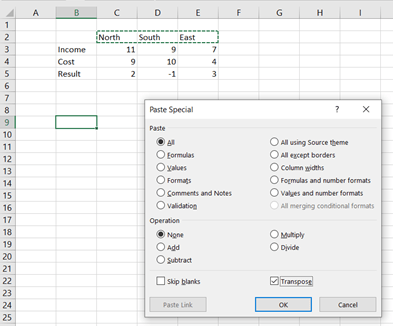
Activate C2:E2. Place the cursor in B9. Then press control + C. Select home – paste – paste special, activate transpose.

The values inn C2:E2 were copied into B9:B11.
In the same way copy results per region by activating C5:E5. Paste special in C9.
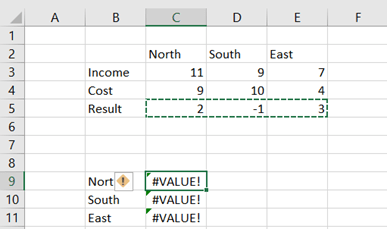
This does not work. The cell C5 calculates the difference between C3 and C4. When the values are copied and transposed in C9, the formula in C9 is A9-B9, which is not our intention.
Now, we can use function TRANSPOSE.
Write the formula =TRANSPOSE(C5:E5) in C9 and press enter. Please note that control + shift + enter is not needed. Just empty values in cells C10:C11.
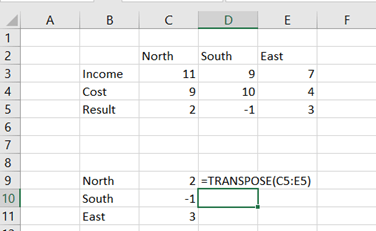
An advantage with function TRANSPOSE is that values in C9:C11 are dynamic. Let’s change the cost for East region.
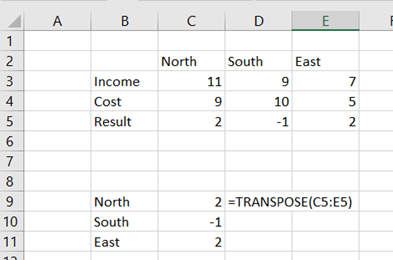
The value in C11 changed too.
As the region names in B9:B11 are copied, they are static, not dynamic.
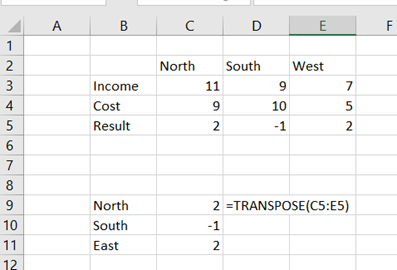
Region name East was changed to West in E2 but the cell B11 is not reflecting.

Also the regions can be populated in B9:B11 with TRANSPOSE function. Note, that empty first values in B10:B11, that TRANSPOSE is not trying overwrite the values in B10:B11.
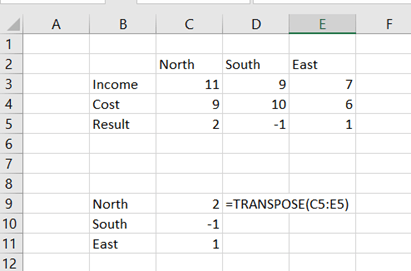
Now both arrays in B9:B11 and C9:C11 are dynamic.
 My Problem Solving Blog