BI reporting from SQLite database

In this blog I will demo, how you can take reports in Excel or in Power BI, when the data is in a self made database. The database is simplified just to demo how you can report the data with Excel.

The editor I am using is SQLite3.

The table “sales” includes sales data, product and volume. The sales table is a transaction table.

The product table includes basic data of the product. This is like product master data.

In order to get SQLlite connected with Excel and Power BI, you need to download the connector from http://www.ch-werner.de/sqliteodbc and there sqliteodbc_w64.exe.

In ODBC admin press add.

Take the SQLite3 ODBC driver and press finish.

Browse your database and give a name.

Press OK.

In Excel take data – get data – from other source – from ODBC.

Open up the drop down list and select sales_demo.

Press ok.

Select windows and use my currect credentials. Press connect.

Select multiple items and select both the tables. Then press transform data.

Price in prod table was changed to be integer.

Also the sales volume is the data type of integer.

The data in Power Query is same as in SQLite3, as it should be.

Close & load – close & load to.

Only create connection and add this data to the Data model.

Take Power Pivot and Datamodel.

Diagram view.

Create a minor data model.

Take pivot table that takes the data from data model.

Use the Data model as the basis for the Pivot.

Let’s create a measure to sum the sales.

Select size as rows and sum of sales as values.

The total 121 is divided 101 large products and 20 small ones.

To calculate the sales in money, we will use SUMX and RELATED functions.

The formula is here: =sumx(sales,sales[vol]*RELATED(prod[price]))

Results in Excel.

The same process in Power BI:

Get ODBC, then connect.

Sales_demo press ok.

Connect.

Tick the tables and press transform data.

Change data type for price as integer.

Also change data type for vol to integer.

Close & apply – close & apply.

Power BI created the relation automatically, unlike Excel.

Create measure for summing the sales.

Create another measure just like in Excel.

Results in Power BI.

Doublecheck the results from database directly.

Sales volume by size.

Sales in money by size.

If you have data in a self-made database, it is possible in some cases to use Excel or Power BI for reporting.  Connector is needed but in this case, the connector was available on line. The same connector work for both Excel and Power BI.

Even though SQLite is not listed in Excel or in Power BI as a source of data, but via ODBC you can access SQLite database.

Once more, Power BI visualize the data instead of writing SQL scripts in editor even though the results are same both in database and in Power BI.
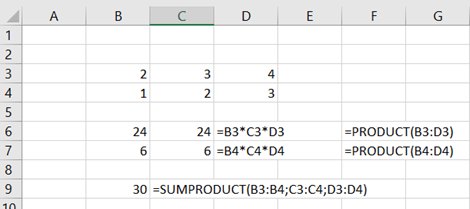
sumproduct in payroll

I have earlier presented the SUMPRODUCT function.

When PRODUCT is simply same as multiplying cell, SUMPRODUCT is sum of PRODUCTS.

This picture illustrates PRODUCT and SUMPRODUCT functions.

PRODUCT(B3:D3) is same as B3*C3*D3.

PRODUCT(B3:D3)+ PRODUCT(B3:D3) is same as SUMPRODUCT(B3:B4;C3:C4;D3:D4)

A person has a salary of 3000. In the middle of the month the person receives a raise of 240 €.

 In a month there are 22 working days. The persons salary is 3000 during 15 workdays of the month and 3240 for seven working days.

15/22 days the salary is 3000 and 7/22 days 3240. The salary during that month is 3076,36.

That can be calculated with SUMPRODUCT(B4:B5;C4:C5) which might be easier than traditional way in C7.

Weekday in BI reporting

A sales report is downloaded from ERP. The dimensions are sales date, product and sales volume.

Does the weekday play a part in sales ? Are the sales for a product different between different weekdays ? Is one day in week more favourable for sales than another one ?

We can do this in several ways.

  1. Traditional pivot

If we use traditional Pivot which sits on top of Excel range, we just add weekday next to sales volume. Weekday is defined by the date.

Earlier in my blog I was presenting the IF-sentence which returns you a weekday based on the WEEKDAY function.

=IF(WEEKDAY(a2)=1;”Sunday”;IF(WEEKDAY(a2)=2;”Monday”;IF(WEEKDAY(a2)=3;”Tuesday”;IF(WEEKDAY(a2)=4;”Wednesday”;IF(WEEKDAY(a2)=5;”Thursday”;IF(WEEKDAY(a2)=6;”Friday”;IF(WEEKDAY(a2)=7;”Saturday”)))))))

Create a Pivot based on the range.

Pivot selections.

The results. Weekend is a good time for sales. Friday is still ok, but Monday is really quite day.

2. The weekdays in Power query

However, we can do the same in business intelligence side.

First, we need to download the file to data model.

Transform data.

Close & Load To

Change the date column to date data type.

Add column – date – day – name of day.

Errors appeared.

Select the query options.

Change to Finnish.

Close & Load.

Now the days are ok, at least with me.

Select Add column – custom column.

The formula:

Date.DayOfWeekName([Date])

The columns are the same.

Create a pivot based on the data model.

Selections.

Results not yet sorted.

Different selections.

The same results.

3. Weekday in Power Pivot

Add new column with script below.

=if(WEEKDAY([Date];1)=1;”Sunday”;if(weekday([Date];1)=2;”Monday”; if(weekday([Date];1)=3;”Tuesday”; if(weekday([Date];1)=4;”Wednesday”; if(weekday([Date];1)=5;”Thursday”; if(weekday([Date];1)=6;”Friday”; if(weekday([Date];1)=7;”Saturday”;”Else”)))))))

Selection criterias.

Results in English.

4. Let’s see how the weekdays get reported in Power BI. The dates are in a separate table.

File – get data – text/CSV. To load the flat file.

Press transform data.

The table name was changed.

Select close & apply – close & apply.

Upload the data again, but now upload just the dates. Delete the product and sales volume data by home – remove columns.

Right click the date column header and select remove duplicates.

Select add column – date – day – name of day.

Weekdays appear in Finnish.

If you want to modify the day names, there is also another option.

Select add column – day – day of week.

Day of week returns a number. 6 is Sunday, 0 is Monday, 1 is Tuesday and so on.

Then select add column –  conditional Column.

Fill the IF-sentences via graphical interface. If Day of week (number) equals to 6 then Day short column holds the value Sun and so on.

You can name the days in your own way, I have used here the shortened values.

Close & apply.

Create a simple data model.

Cardinality is one in master data table and many in transaction table.

Create a measure to count the sales.

Sunday is the best sales day, Tuesday the worst. This is in line with Excel reports.

There are many ways to report sales by weekday. Power BI offers graphical tools for several purposes. Also having a data model with transaction table and master data table is useful. Among the options I have demonstrated, I vote for Power BI.