INDIRECT formula returns the value of a defined cell. Examples below shed the light how the function functions.

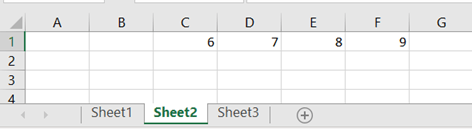
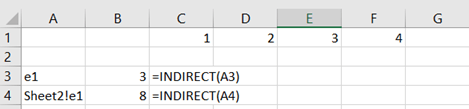
Think you have a three-dimensional sales report Excel sheet. In each sheet there is a sales report from different sales district. The top sheet sums up all the sheets.

The top sheet sums up districts 1 to 10.
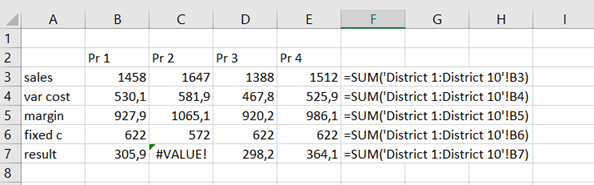
But somewhere exists an error and the top sheet cannot calculate the sum.
You can browse each sheet and track the error. If you do this several times or if you have dozens of sheets in your workbook, you might think to have a faster way to find out the sheet not functioning correctly.
INDIRECT formula will help us. We need to what is the cell C7 value in each sheet, as one C7 shows an error.
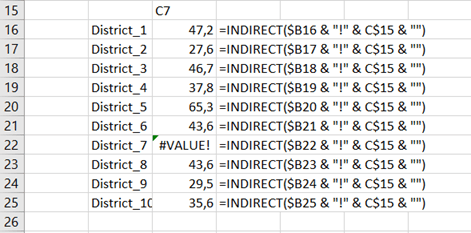
In the District_1 view the value in C7 is 47,2 in District_2 C7 holds value of 27,6 and so on. The faulty value is in sheet District_7.
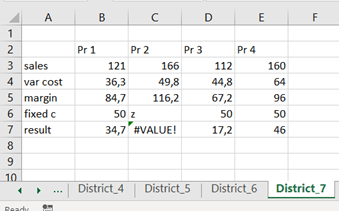
Once the wrong value was corrected, the sheet District_7 shows correct figures.
The INDIRECT formula needs sheet, exclamation mark and cell like INDIRECT(District_1!C7). With references you avoid typing the formula each time.
=INDIRECT($B16 & “!” & C$15 & “”)
 My Problem Solving Blog