To have extra spaces in Excel cell is quite common issue. Especially when data is downloaded from another system to Excel, some additional digits can be found in Excel.
I have had issues with leading spaces. Here are some hints how I have tackled the space issues.
First thing is to check how many digits the cell contains as the initial spaces are not visible. The function LEN is for this purpose.
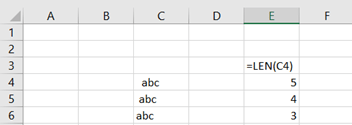
The formulas, which are worth trying first, are TRIM and CLEAN. SUBSTITUTE is to change a specific character to another. If you want to use REPLACE, you need to know which digit, like the first one, is space.

One option to delete leading space or two leading spaces, is to write IF sentence. If the first two digits are spaces, then take digits from the 3rd onward. Number of digits to be captured is the total length of the cell minus two. If cell contains only one leading space, then Excel should capture digits starting from the second one, and count the last digit by taking the total length minus one. If neither of IF statements, the first two digits are spaces or the first digit is space, is true, then IF is returning the cell value unmodified.
=IF(LEFT(C18;2)=” “;MID(C18;3;(LEN(C18)-2));IF(LEFT(C18;1)=” “;MID(C18;2;(LEN(C18)-1));C18))
The issue with space is that space is not in fact a space. Each digit is Excel has a CHAR number. Like capital A is char(65). Function CODE returns the char number.
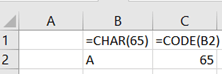
In Excel there is char(160), which is like space but not exactly space. Space + abc is not similar to char(160) + abc. Similar formulas with work with the first case might not work with the second one.
The best solution so far I have found with extra spaces have been nested function to link several function and hopefully some of the works. When you create a customized formula, you don’t have to write whole chain every time from the start till end.
Function z_space2(z_cell)
z_space2 = WorksheetFunction.Trim(WorksheetFunction.Clean(WorksheetFunction.Substitute(z_cell, Chr(160), ” “)))
End Function
 My Problem Solving Blog